Change and Stability, Pt. 2
Between Metaphors and Jargon
Published on September 5, 2026 Article details

Overview
Back in the language section of part one, I mentioned that conceptual engineering would become more apparent in the following parts. Time to get started.
Here is what lies ahead: we will begin by putting the puzzle piece, written document, and penguin from part one to work. When one of them cannot express a distinction we need, we will switch to another, recover an earlier one, or introduce something new. That process will help us separate the shape of an operating system from its state, turn a camera into a way of thinking about snapshots, and prepare a path from playful metaphor toward technical jargon. The technical destination matters, but so does watching the conceptual devices being designed, applied, evaluated, and recalibrated along the way.
Conceptual Games
Let’s begin with the puzzle pieces and written document introduced in part one. Our first task is to use them to design our conceptual environment. Consider the following illustration:
The Journey of a Piece of Software
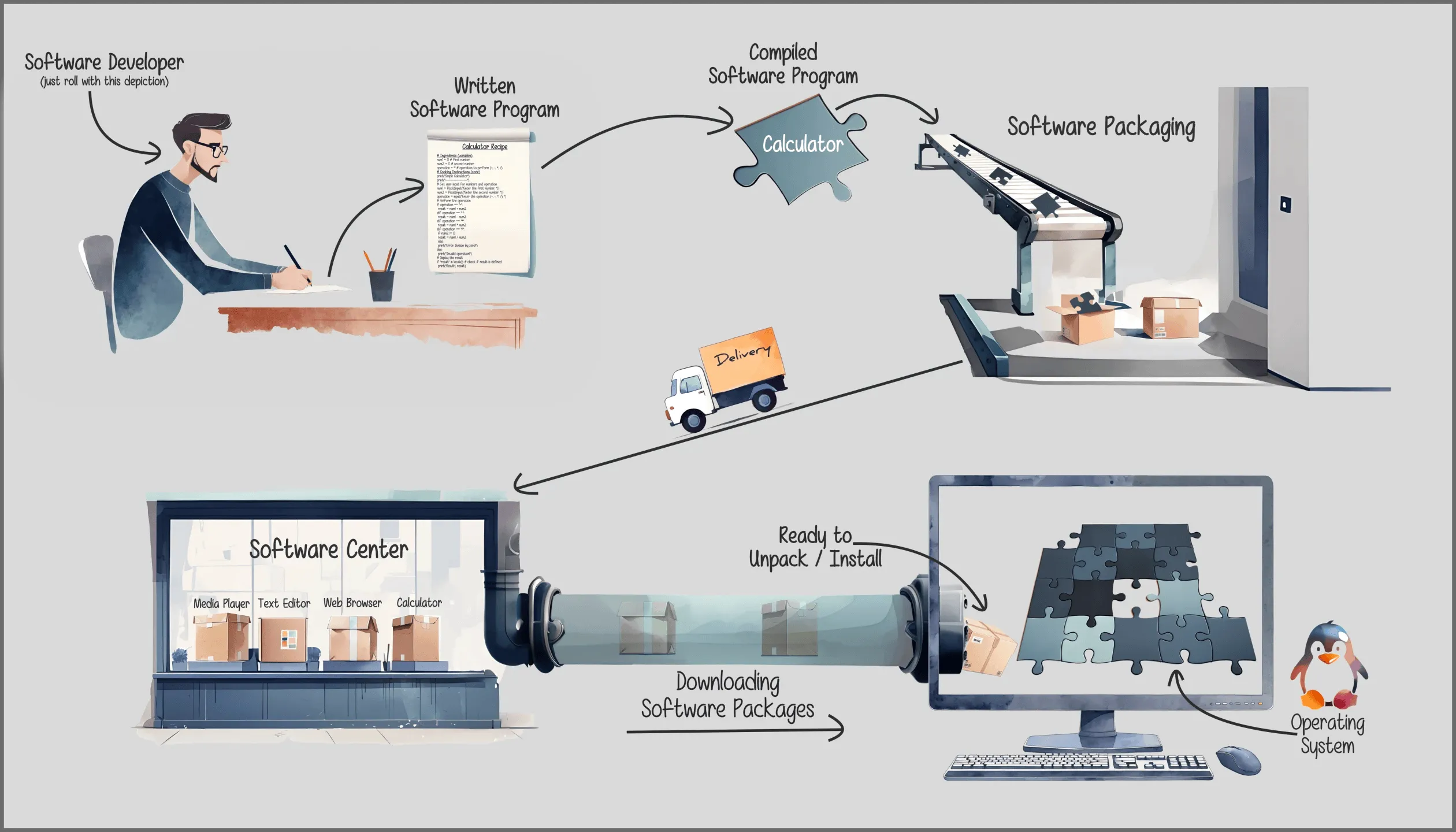
The process starts in the upper left corner with a software developer1 producing a piece of text. That text is also known as the source code (opens in a new tab), written in a human-readable programming language that specifies the behavior of a computer. In other words, you and I can learn how to understand that text with a bit of practice. And indeed, for some it is a little easier to make sense of that document than it is for others — just like it is for any other text. The point is: it’s simply a written document containing instructions for the computer. The problem: the computer won’t understand these instructions if they are presented as human-readable text.
The next step is the conversion from the written document into the puzzle piece. This is like translating human-readable language into machine code so that the computer can actually understand the instructions written down by the person in the upper left corner of the illustration.
By extension, once we have obtained the puzzle piece, we won’t be able to understand the instructions as easily anymore. So if we get a puzzle piece without the written document and we’d like to know the instructions contained inside the puzzle piece, we’d have to resort to reverse engineering (opens in a new tab):
a process or method through which one attempts to understand through deductive reasoning how a previously made device, process, system, or piece of software accomplishes a task with very little (if any) insight into exactly how it does so.
If that sounds a little cumbersome, you can think of it this way: don’t lose the written document once you’ve converted it into a puzzle piece.
Next, to prepare our piece of software for installation (opens in a new tab) on our computer, we can imagine our puzzle piece inside a parcel or package. That package will then be delivered (or uploaded) to a software center (or app store) from which it can be downloaded onto our computer. Finally, a package manager (opens in a new tab) will take care of
the process of installing, upgrading, configuring, and removing
our software program, depending on what we want to do. That usually happens automatically in the background when we double-click on an installer or open our computer’s software center and click on install, update or uninstall. In a nutshell, we don’t have to be concerned with the detailed logistics behind managing the installation, update, or removal of a puzzle piece or software program.
This leads us to the main focus of this section: change in relationship to an operating system and how to express that change.
Beginner Mode
The most basic change to our operating system is software installation and removal. Starting with the installation, this can easily be illustrated as follows:
Software Installation
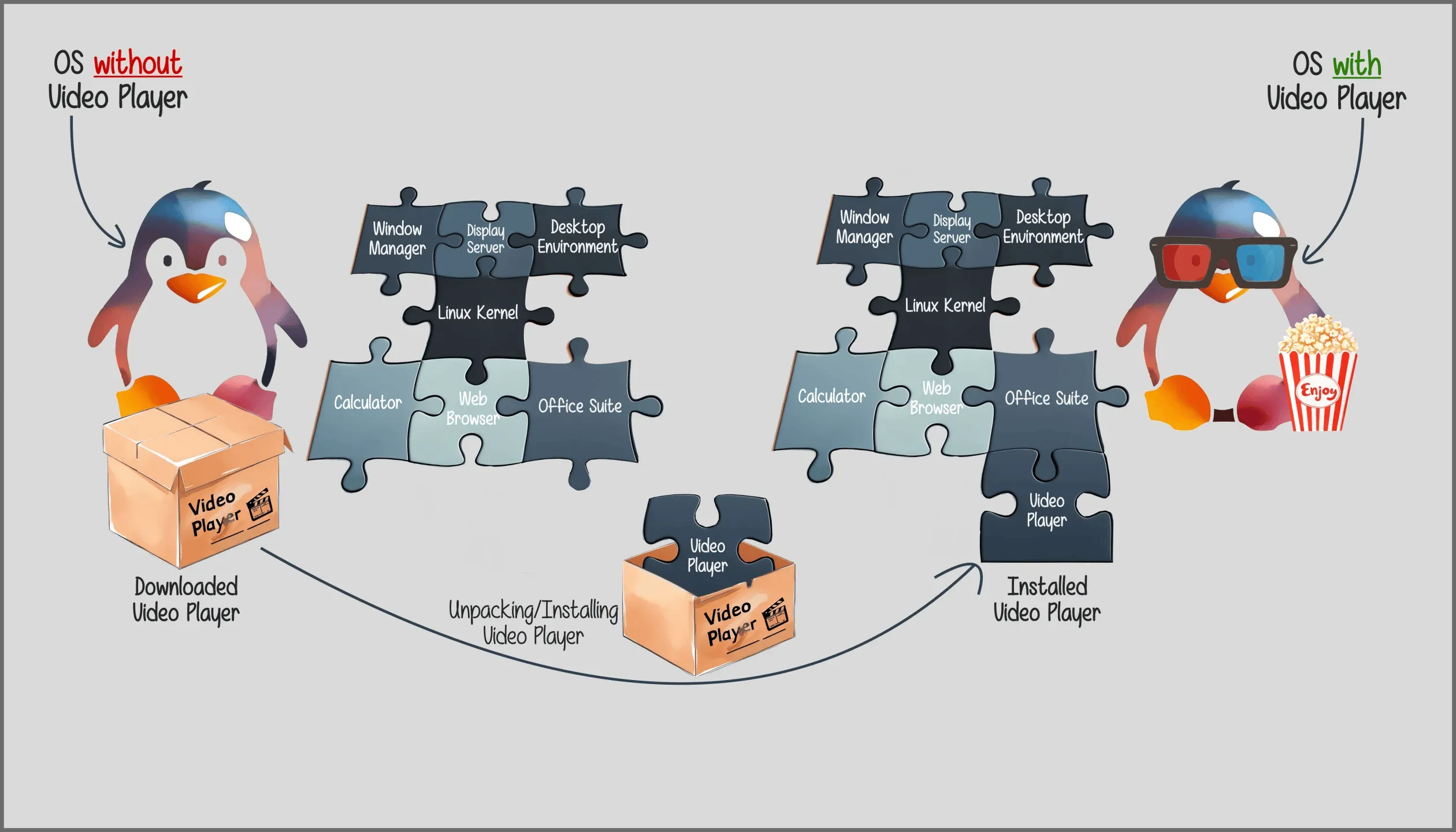
Based on our puzzle metaphor introduced in part one, it is possible to visualize the installation process by unpacking and adding a new puzzle piece to the existing puzzle i.e. the operating system (OS), leading to a more basic question about expressing change: while the puzzle metaphor has its strengths to explain the modularity of our OS, it comes with its own limitations when expressing other aspects. That’s not to say that it would be impossible to keep that metaphor around for the rest of Change and Stability, but depending on the concept we might want to choose different metaphors to more effectively explain the matter at hand.
This brings us to the overlapping metaphors in the illustration above: while the system’s modularity can easily be expressed with a jigsaw puzzle, it is also possible to express that same modularity with a penguin by simply changing its appearance, albeit without the same technical nuance.
Take a look at the following approach to illustrating software removal:
Software Removal
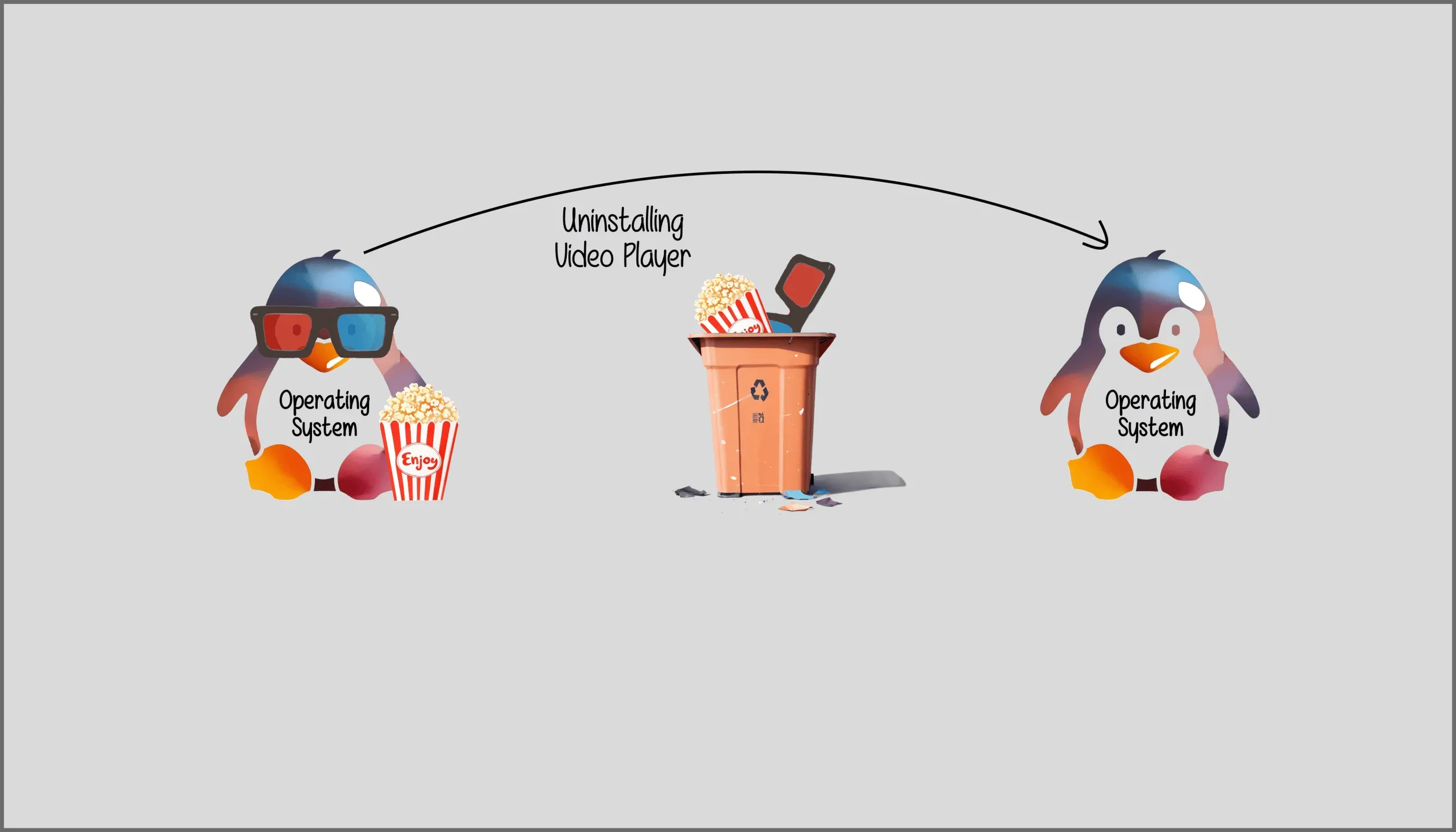
Here, the puzzle has quietly left the stage: uninstalling the video player simply means tossing the 3D movie glasses and popcorn into the bin — same penguin, fewer accessories.
Essentially, change in the context of an OS can be discussed from different angles. For example, the jigsaw puzzle makes it convenient to visually highlight a change of an OS’s (physical) shape. Personally, this metaphor helped me to visualize and think about modularity — as well as to ask myself whether that idea could be visually expressed in a different way if need be. So while the jigsaw puzzle has its advantages when the aim is to look at individual components of an OS, it might be rather difficult to show a change of its state i.e. what condition it is in.
Imagine adding and removing puzzle pieces affecting the size (shape) of our operating system. Such change can lead to one of the following three states:
- working
- partially working/broken
- broken
When powering on the computer, we may end up with the following situations: our OS boots into a fully functioning digital environment (working); or we have an environment without sound or with a broken video player (partially working/broken); or the OS fails to load and there is no environment to begin with (broken).
This is where expressing change with a penguin becomes useful. As opposed to a jigsaw puzzle, the penguin metaphor is more flexible because we can depict the concept of state with more nuance. Consider, for example, the concept of health.
Specifically, we can keep showing software installation and removal by adding accessories (e.g. glasses, popcorn, or paintbrush) to the penguin. On the other hand, we can additionally show a penguin that looks sick, with damaged accessories (partially working/broken), or in a coma/dead (broken). This way, illustrating the interaction between various components of an operating system turns into something playful. No need to worry about complex jargon to preserve technical accuracy. Which is not what we’re after anyway. Our focus is to develop an idea for how different components of an OS coexist under constant change.
With that in mind, here’s an example of how to visualize a change of the operating system’s state:
Affecting the State
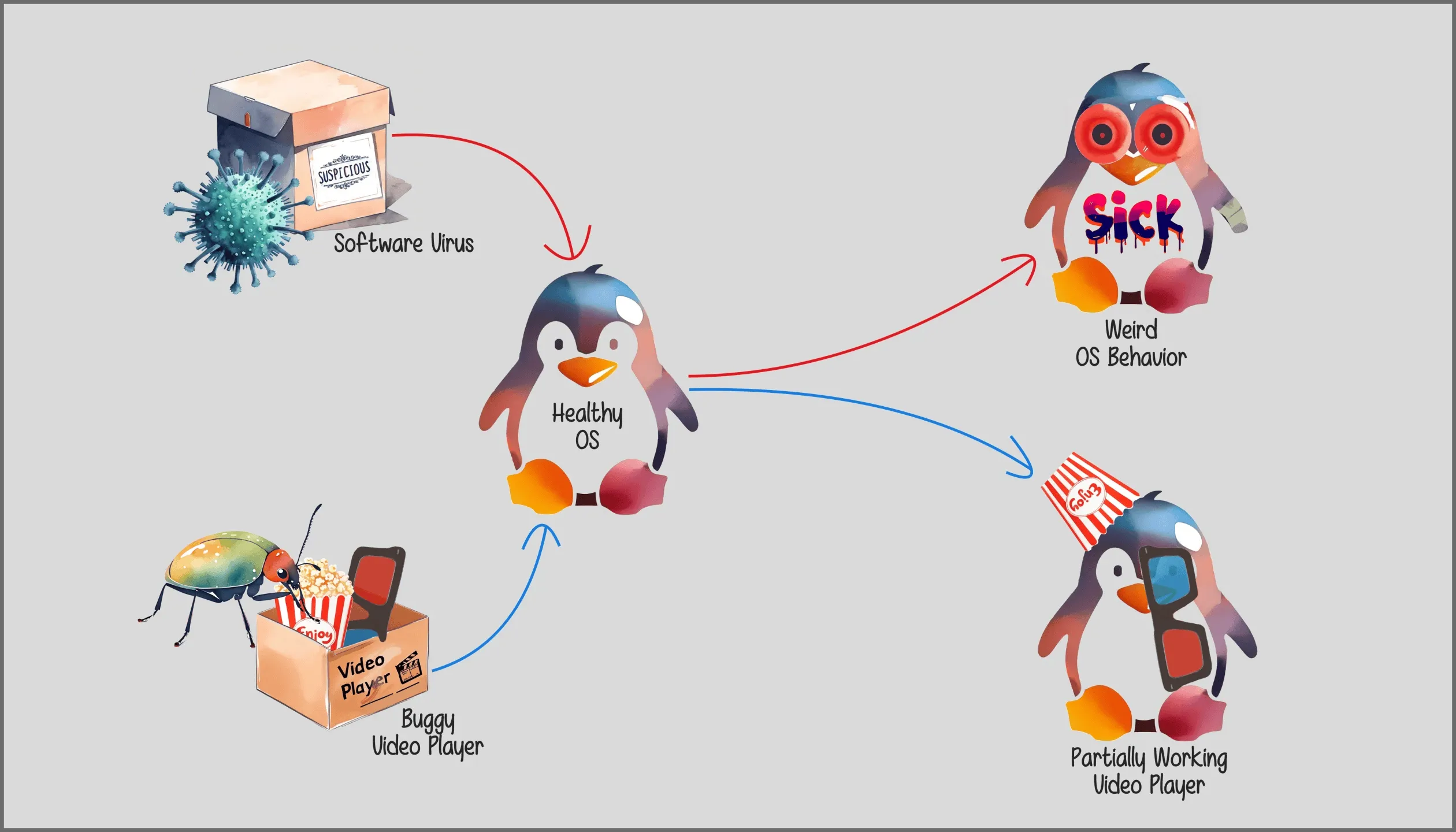
With a penguin, we can visually mess with its looks without the need for adding anything new. For instance, simply tweaking the penguin’s eyes to make it look unwell can convey a change of state. Likewise, turning accessories upside down can be convenient to illustrate an imperfect state.
By contrast, using the puzzle metaphor, every new addition to our operating system will show a change of its shape, including viruses (which are just different puzzle pieces). Sure, we could use differently colored or broken pieces, but they wouldn’t be as memorable as a goofy-looking penguin with 3D movie glasses dangling from its face.
Furthermore, by giving change a little more nuance, it can be examined in different contexts. We’ve seen that installing new software or removing old software always affects the operating system’s shape (the number of puzzle pieces) and may or may not affect its state (working, partially working/broken, broken). In other words, making the nuance between shape and state visible allows us to express how it is possible to alter the operating system’s shape without affecting its state.
The next subsection will explore how our system’s state can be affected without necessarily changing its shape.
Intermediate Mode
Based on the representation of a piece of software as a written document introduced in part one, we can illustrate the update and downgrade process as follows:
The Basic Update/Downgrade Process
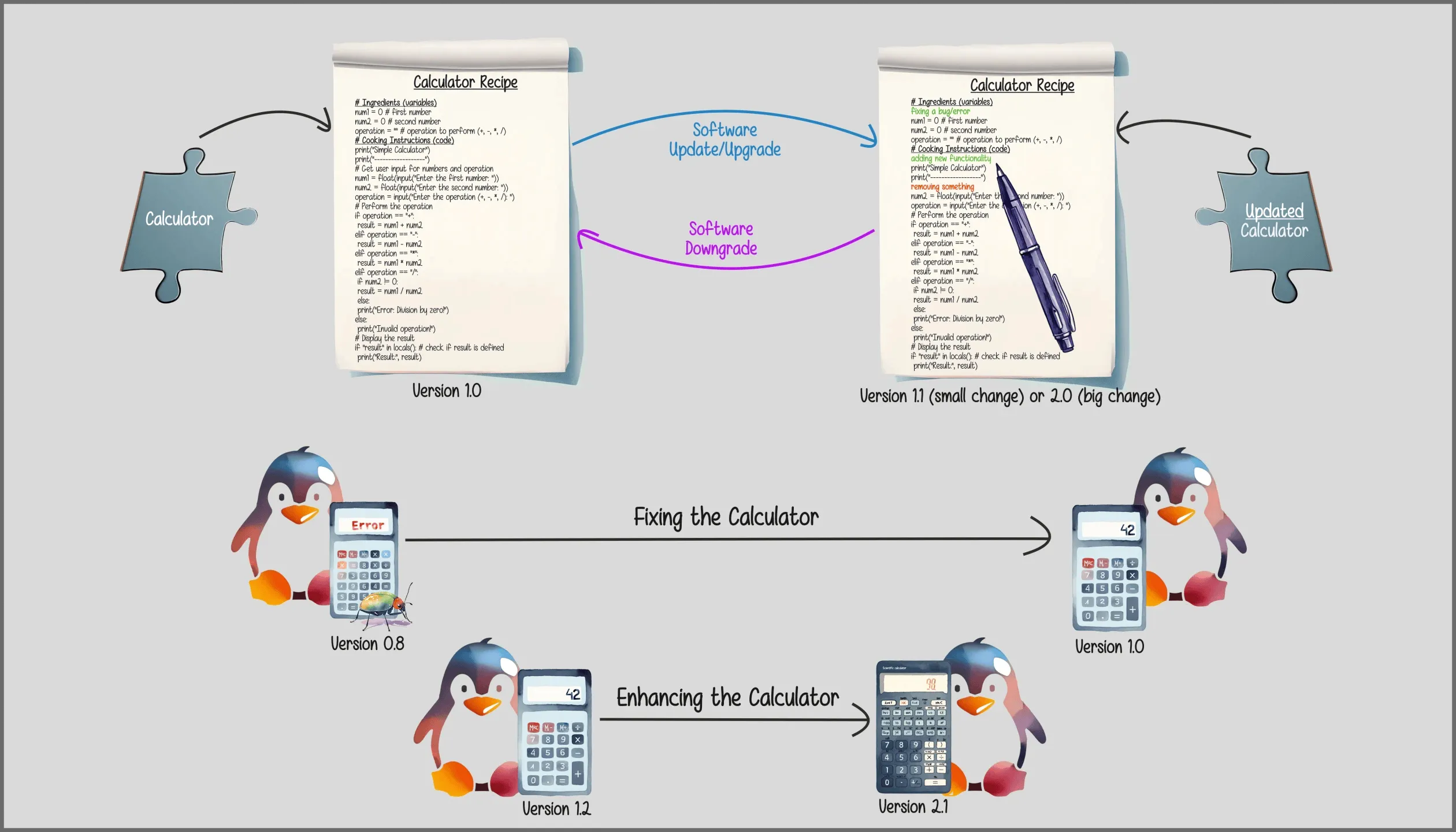
The illustration above contains three metaphors all pertaining to our operating system. Depending on which one we use, our ability to express change in relation to shape and state can vary.
Starting with converting the puzzle piece into a written document, we have a convenient representation for the term update (making a change) and its antonym downgrade (reverting the change). As mentioned in part one, updating software isn’t unlike editing text to make improvements or correct mistakes.
Switching to the penguin metaphor with a calculator accessory, the first situation depicts a penguin with a buggy calculator. To fix it, we look at the written document, check for a mistake in the text, and correct it. This correction is often expressed with the concept of software versioning (opens in a new tab) i.e. by increasing the calculator’s version number — for instance from 0.8 to 1.0, a milestone commonly used to communicate that the software is good enough for particular use cases (e.g. production ready). Bigger changes might bump the number harder, say from 1.1 to 2.0.
With that in mind, being able to visualize the update and downgrade process in the form of a written document can give us a bit of an idea for why our operating systems get constant updates to their components: they seem to be stuck with editors who cannot make up their minds. Joking aside, this raises the question whether our written document ever reaches a point where it doesn’t require any changes anymore. The answer is that it depends.
Thinking about an operating system as a unified whole (or a jigsaw puzzle) where every component has to function in harmony with all the other components is a good place to start. In other words, changing one piece of software might create incompatibilities with another one. This forces every component to keep up with the rest of our operating system’s software pieces it depends on. And the system keeps evolving.
Now, when it comes to a change of state, our written document metaphor isn’t that great. It is definitely more effective for explaining the update/downgrade concept than a puzzle piece or a penguin — it shows us what changed: the edited symbols, the bumped version number, all while the set of installed puzzle pieces stays the same. But when it comes to visualizing whether the result actually works, it is as limited as our puzzle piece. This brings us back to the penguin and why we want to be able to switch between metaphors: the document can show us what changed, the penguin can show us whether it works.
Moving forward, it helps to keep all of these metaphors in mind as well as to be open to integrating new ones. This will allow us to choose the most effective one for a given situation.
Conceptual Engineering
The Conceptual Games were not just play — they were this part’s organizing method in action. We designed conceptual devices, put them to work, watched where each one stopped carrying a distinction, and recalibrated: switching from puzzle to penguin, recovering the written document, and staying open to new additions. In short, we were already doing conceptual engineering. And, as it turns out, we are not the only ones playing this game.
During my research for this part, I learned that the term conceptual engineering already exists in philosophy. The encyclopedic summary (opens in a new tab) emphasizes its normative agenda: conceptual engineers prescribe which concepts we ought to have and use instead of merely describing the ones already available. That is definitely not my intention. My concern is narrower: designing and recalibrating conceptual devices within this piece.
So for a brief moment, I considered replacing the term with something fresh. That would have been the easy way out — but it would also have meant abandoning the objective I set in part one: conceptually engineering conceptual engineering. Besides, I had since built a framework for semantic cartography, opening up a way to hold my own calibration next to the existing term rather than replacing it. So I followed the references, leading me to David Chalmers’s paper What is Conceptual Engineering and What Should It Be? (opens in a new tab). His broader definition:
Conceptual engineering is the process of designing, implementing, and evaluating concepts.
In Chalmers’s essay, that includes repairing old concepts as well as constructing new ones, followed by evaluating how well they perform particular roles. The essay even argues for keeping multiple concepts around when they remain useful for different purposes. Better yet, Chalmers originally considered calling the paper Conceptually Engineering Conceptual Engineering.2 Apparently, I wasn’t as original in part one as I thought.
Now, Chalmers’s essay divides the process into designing, implementing, and evaluating concepts. Implementation ultimately means using an expression accordingly and getting others in a community to use it that way as well. Change and Stability takes a different route. I am not trying to establish how everybody should use the term conceptual engineering. Instead, I am implementing the practice inside this piece: assembling conceptual devices, putting them to work, and recalibrating them whenever their expressive limits become visible.
When I choose the penguin over the puzzle — or bring the puzzle back because the penguin can no longer express a useful distinction — I am making a purpose-bound judgment about which conceptual device should help us understand the technology. Chalmers’s essay presents conceptual engineering as an intertwined, potentially recurring process, yet keeps that cycle abstract; this piece makes the return from evaluation to another round of design visible. Both approaches rely on an engineering analogy, but they differ in how far the cycle travels, what counts as implementation, how success is evaluated, and which expressive media carry the concept.
Rather than settle those differences with another dictionary-style definition, the following ADF map offers an overview of the resulting comparison: Parts one and two of Change and Stability first, followed by Chalmers’s essay as a philosophical contrast. The five shared dimensions were designed by taking both perspectives into account from the ground up. Also, the map does not pretend to represent Chalmers’s entire philosophy, nor does it treat the Wikipedia summary that prompted this detour as a perspective of its own.
This comparison doesn’t require either calibration to take control of the term. Each can keep its own coordinates while the shared space makes their convergence and divergence inspectable. The comparison also lets me clarify the relationship between the two terms introduced in part one: conceptual translation moves an idea between expressive systems, while conceptual engineering designs and recalibrates the conceptual apparatus that makes the translation useful. Here, translation becomes one way of implementing an engineered concept rather than a competing practice.
Finally, the map is an orientation, not a conclusion you have to accept before continuing. The Conceptual Games offered a first walk along the Change and Stability calibration; what follows points the same calibrated repertoire at the boot process — and beyond.
Strategic Preparations
There is this Jamie Lidell (opens in a new tab) song called What’s the use? and I think he’s asking the right question. So far we have established a metaphorical framework, but without applying it to something a little more tangible, we’re just discussing semantics. Let’s change that.
At this point, it is safe to say: change is inevitable. With something as complex as an operating system, things keep evolving — and with it comes uncertainty: are the changes caused by installing, removing or updating our operating system and its components going to negatively affect their state? And, if so, do we have to hope that there’s an IT professional around the corner to quickly get our technology up and running so we don’t fall behind? In short: with a properly configured snapshot and boot setup, even a badly broken software state does not necessarily leave us stranded. And to make sense of this, we are going to use our metaphorical framework to describe the process conceptually.
Typically, when we power on the computer we see a splash screen (opens in a new tab) with the logo of our computer’s manufacturer. Next comes the bootsplash (opens in a new tab) or loading screen of our operating system and, finally, we’re presented with our workspace or desktop:
The (Straight) Boot Process
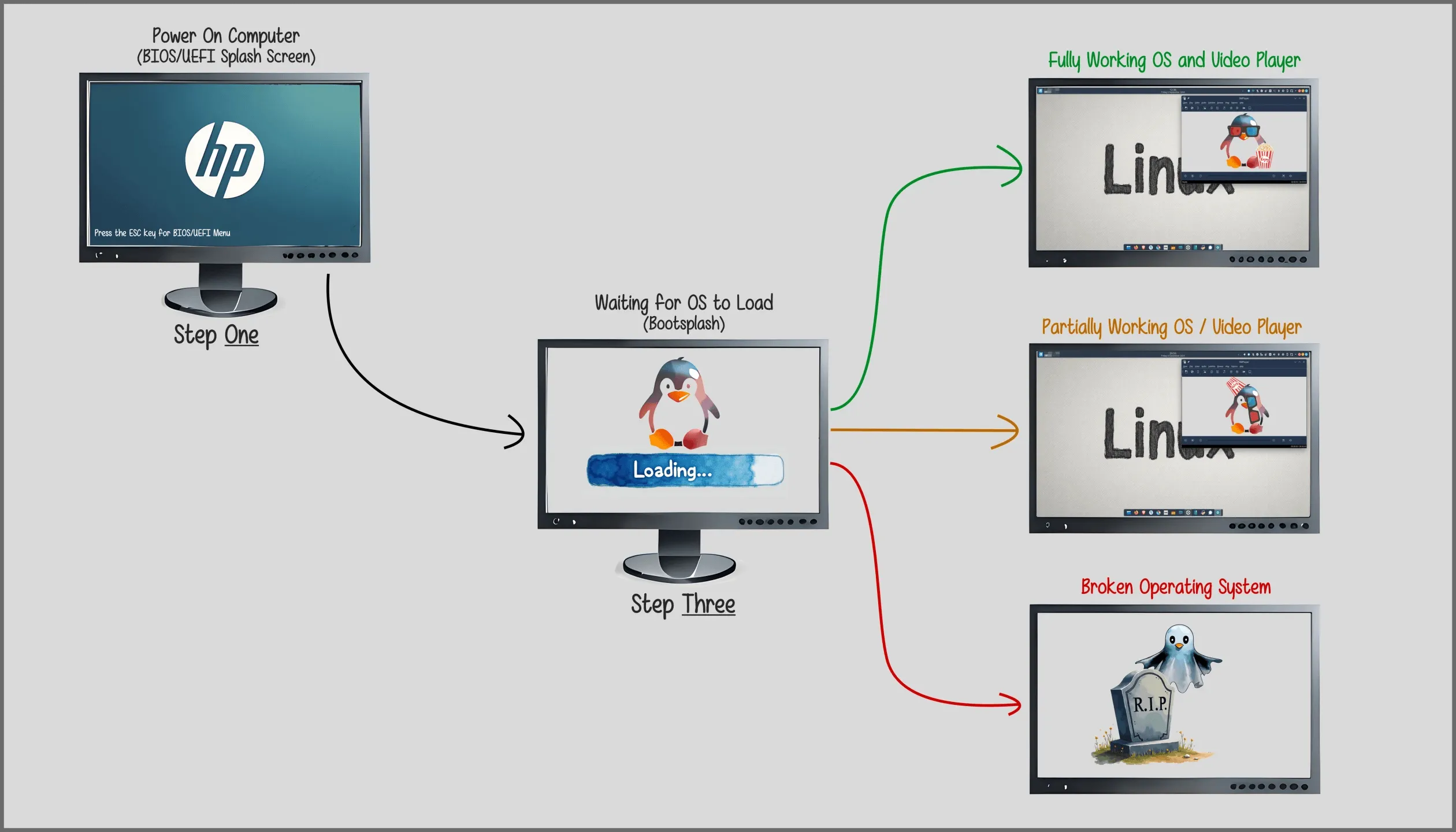
Step One depicts a simple UEFI or BIOS splash screen (with UEFI being a more modern replacement (opens in a new tab) for the BIOS). Depending on your computer’s manufacturer, you might see a different brand than the one depicted in the example. That said, if you pay close attention, you can see a little text that says
Press the ESC key for BIOS/UEFI Menu
This is a menu allowing you to make certain hardware-specific configurations and other more advanced things that most of us (almost) never need. Right now, all that matters is that we are aware of its existence.
Moving on to Step Three, I’d like to start by pointing out that I know how to count. But here we are. Usually, this is what we see: our operating system’s bootsplash or loading screen. Of course, as the boot process gets faster and faster, some of us don’t even see that loading screen anymore. That’s when speed obscures what’s going on behind the scenes. Instead, we are immediately greeted by one of the three scenarios depicted in the next step:
- everything works as expected
- some things are a bit broken
- time to call it a day
The first scenario is the ideal one. I don’t know about you, but that’s the only one I consider acceptable. But what about the other two scenarios? Looking at our boot process, there isn’t much room for intervention. Entering the UEFI/BIOS menu maybe? Because right after that first step we’re already greeted with our operating system’s loading screen and that seems a bit too late for an intervention.
While the UEFI/BIOS menu allows us to intervene, one of the most relevant things we can do inside the menu is choose the boot order. If there’s only one operating system present, that choice isn’t particularly useful. However, we could boot up different operating systems, for instance by plugging something like a Live USB (opens in a new tab) into our computer. This will add another option for us to boot, albeit a different one than our existing operating system. So that cannot be the solution either — unless we want to use that Live OS to chroot (opens in a new tab) into our existing operating system to manually fix it. Don’t worry, I’m not talking to you, dear reader. Just wanted to cover my ass in case some computer nerd ended up seeing this while screaming at the screen.
Now, what we actually need is a Step Two between steps one and three:
The Bootloader
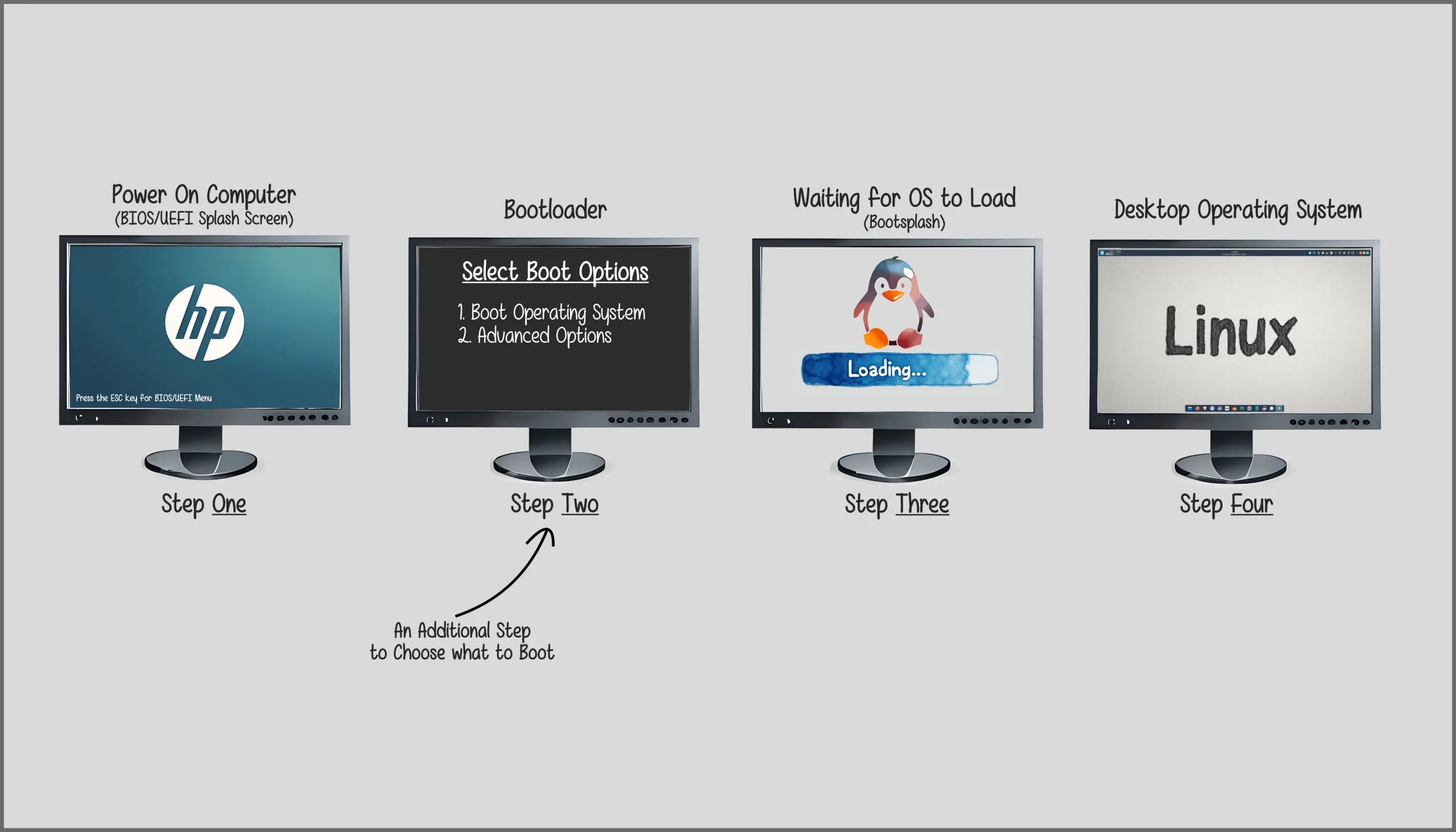
Usually, Step Two is simply hidden. That’s because the first option depicted, Boot Operating System, is automatically selected and off we go to meet the penguin. Or the apple or the window — depending on your operating system.
At any rate, the second step shows us the bootloader (opens in a new tab). This screen is ideal to add alternative options in case our operating system doesn’t want to load properly. We could, for instance, make a copy of our operating system before we modify anything (e.g. installing new software, updating the OS) and add that copy as an additional boot entry in case something goes wrong:
Adding Boot Options
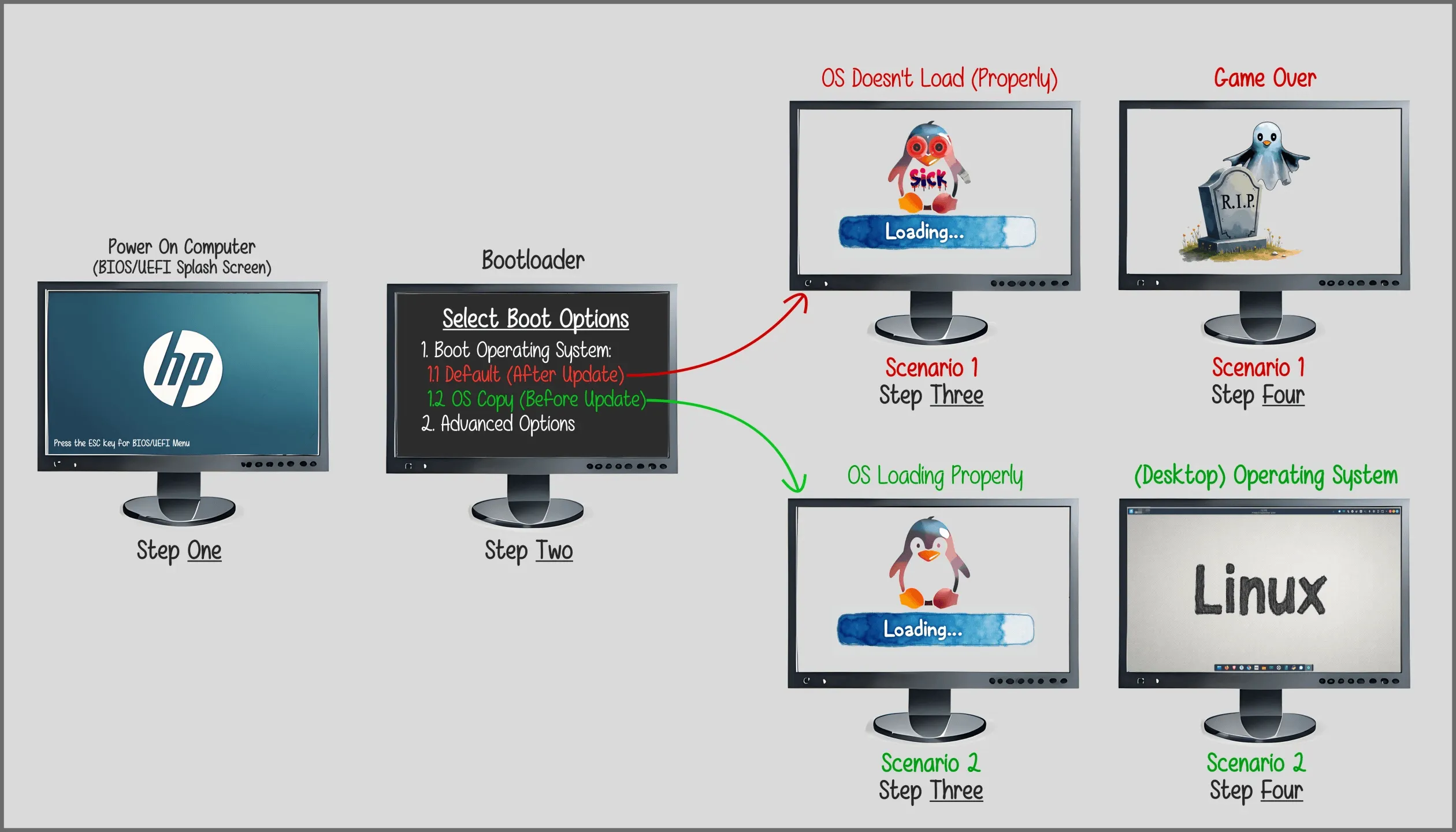
Imagine you just made some changes to your operating system. Perhaps you’ve installed something new or removed something old? An update maybe? And now things are not working as they are supposed to. Well, simply reboot and choose the working copy of your system. It can be that easy. Conceptually speaking — because there’s a lot more to this as we’ll see in the next sections. Before we get to those, however, there’s one question that we can already answer now.
Practically speaking, are we sitting on a system that is doomed to fail whenever we try to update again? Based on my experience, the answer is no. Remember, the operating system and its components keep evolving with time: something might not be working today, but tomorrow or a couple of days later it will. On top of that, having a working copy of our system also enables us to try and fix the issue(s) ourselves without any stress whatsoever. Or, if we lack the skills, to send a bug (opens in a new tab) report to the developers so they can take a look at the problem and fix it3. And, in the meantime, we’re perfectly alright with the working copy of our OS.
Capturing Stability
Before deciding what kind of working copy belongs in that hidden second step of the boot process, we need a more nuanced visual understanding of state. That distinction will let us compare full copies with snapshots and break down more complex concepts later on.
The big challenge with state can roughly be summarized as follows: how do we visually depict a feeling? Earlier, I already provided an example of a sick penguin. By changing the looks of its eyes and writing the word Sick on its belly, I tried to visually convey the idea of bad health. The visual cues (big red eyes, the word “sick”) give us an idea of a change in state: we haven’t added more puzzle pieces, just modified existing ones in not so optimal ways.
The second approach is to illustrate a change of shape that leaves the state untouched — e.g. installing a video player. The penguin now wears 3D movie glasses and has popcorn by its side, so its appearance or shape has changed. Although the OS has gained a new ability, its state remains working: it has not moved into either the partially working/broken or broken state.
To illustrate a change of state without another change of shape, we can introduce an update to the video player and flip the 3D movie glasses and popcorn on its head (as first depicted here). No different puzzle pieces were installed, but the recipe of an existing one was modified in a way that changed the penguin’s state from working to partially working/broken. This contrastive approach makes the intangible or “invisible” a little easier to visualize.
Next, I want to take a look at a visual overview by completing the sick-looking penguin with one that has a visual cue for being in good health. This will almost complete our metaphorical tool set, allowing us to approach the pending conceptual challenge in a more nuanced fashion.
An Overview of Different States
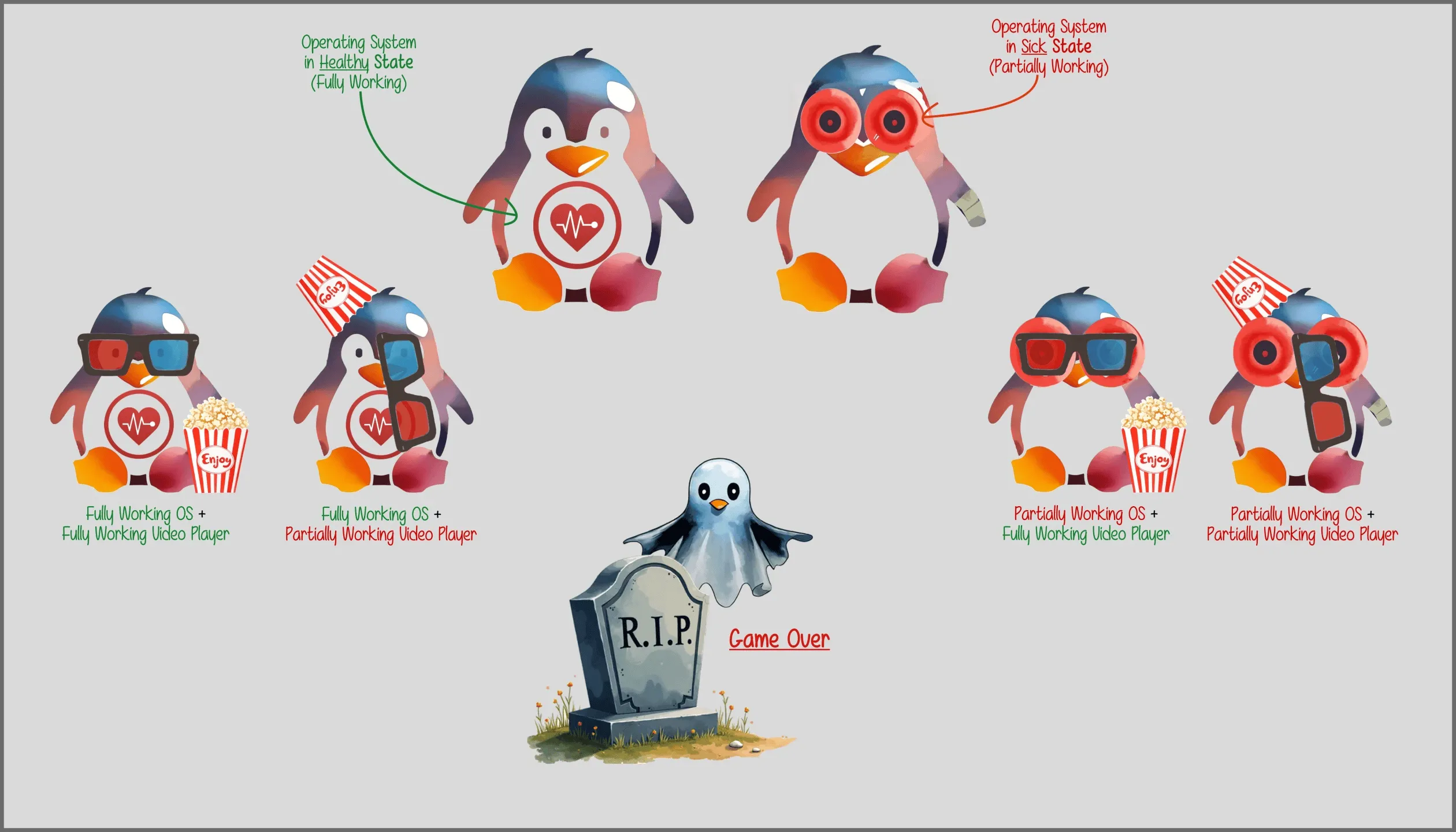
The two penguins at the top have exactly the same number of software components (puzzle pieces) installed. The difference: the one on the left is in a healthy or good state (everything works as expected) while the one on the right is in a sick or bad state (some things don’t work as expected). The heart and eyes are just visual cues to express that idea. And if you’re wondering why I didn’t want to show a healthy and an unhealthy heart (which would also work!), it’s because, to me, these eyes look sick (opens in a new tab) quite funny.
Moving a row below, the same thing applies — except that we have an OS with a video player installed. Once visually expressed, we can develop the state concept in an even more nuanced way: it is possible for both the OS and the video player to be in an excellent state or a variation where one of the two (or both) are in a problematic state.
Finally, the last state is permanent: our penguin has left this world for another one. In other words, nothing works anymore. Maybe an upgrade completely trashed our OS and there isn’t anything left to boot into. Personally, that isn’t something I have ever really experienced. The closest was losing the desktop environment which, to some, may be pretty much like losing the OS altogether.
This brings me to something that you’ll have to keep in mind even with an approach such as adding boot options as shown above: being able to reboot into a working system will only work as long as the hardware itself remains intact — along with everything else needed to reach that hidden second step, such as the bootloader itself. In other words, as long as the copy is on the same disk, the copy is not a backup. Imagine the backup being somewhere safely stored as you watch your computer going up in flames so that when you get a new one you can restore your data on the new device exactly as it was on the old one. That’s a backup!
With all that in mind, time to start weighing our options:
The Copy Duplicates Both Shape and State
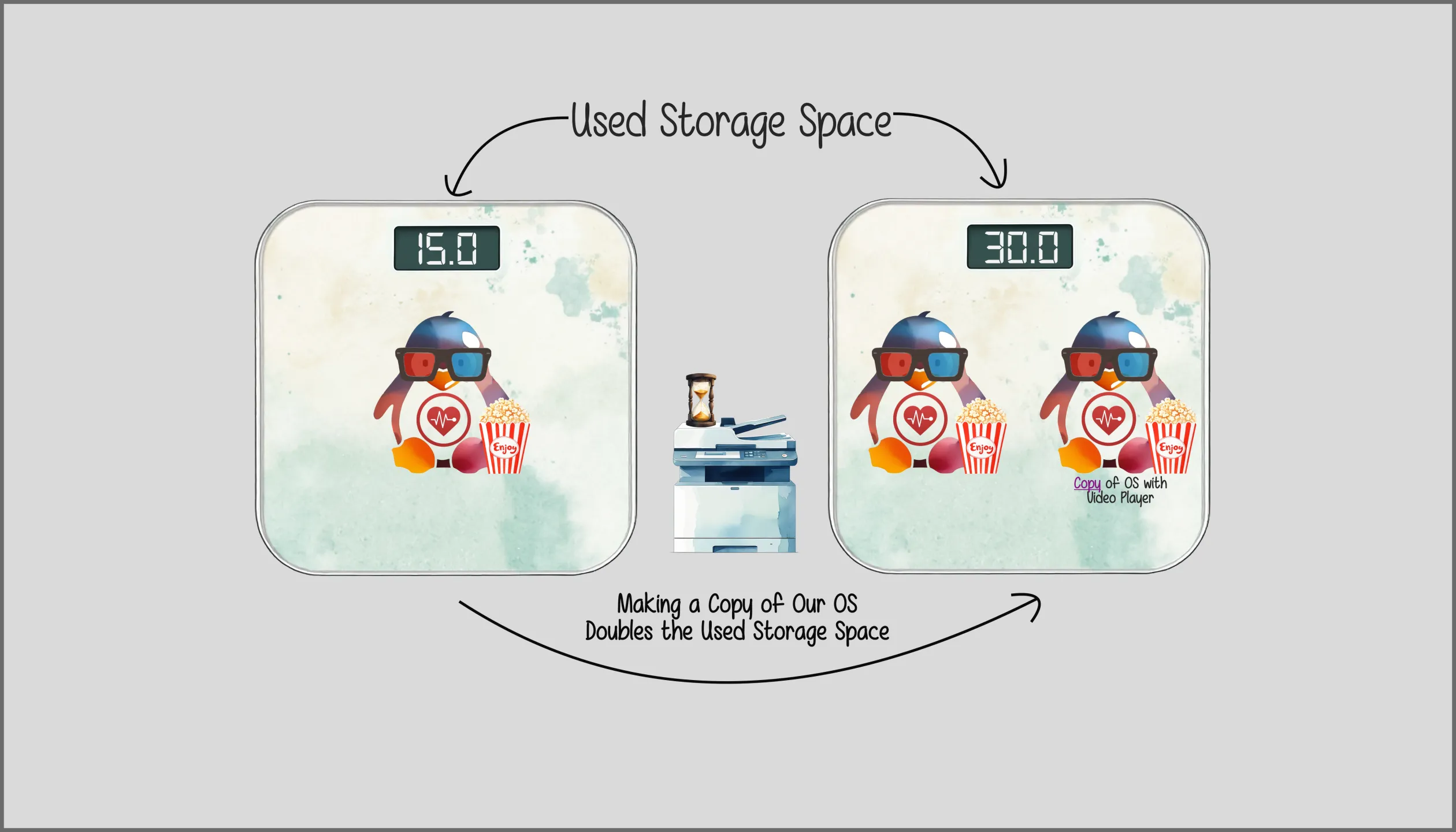
By making a full copy of our entire operating system, we effectively create an independent duplicate of both its shape and state: everything is stored twice. The copy therefore requires roughly the same amount of storage space as the original operating system. Of course, modern computers come with plenty of storage space so most of us will probably still have enough space left with a single copy of our operating system. Not to mention that some lightweight installs of Linux don’t really need a lot of storage to begin with.
The second aspect to consider is that it could take some time — perhaps a few minutes — to make a second copy of our operating system. Again, depending on the hardware, this can vary. But in the context of a change (e.g. an update/upgrade), I’d find it quite amusing to read a message saying:
Wait until the operating system has finished creating a copy of itself.
There are other, more technical things to consider such as write endurance, program/erase cycles or write amplification (opens in a new tab) which can roughly be translated like so: repeatedly making and erasing large copies writes more data to our storage device than a lightweight alternative would — and more writing means more wear.
A better way is to preserve an earlier state without writing all of its data a second time — and for that, let’s complete our metaphorical tool set with one final addition: the camera.
The Snapshot Captures the State
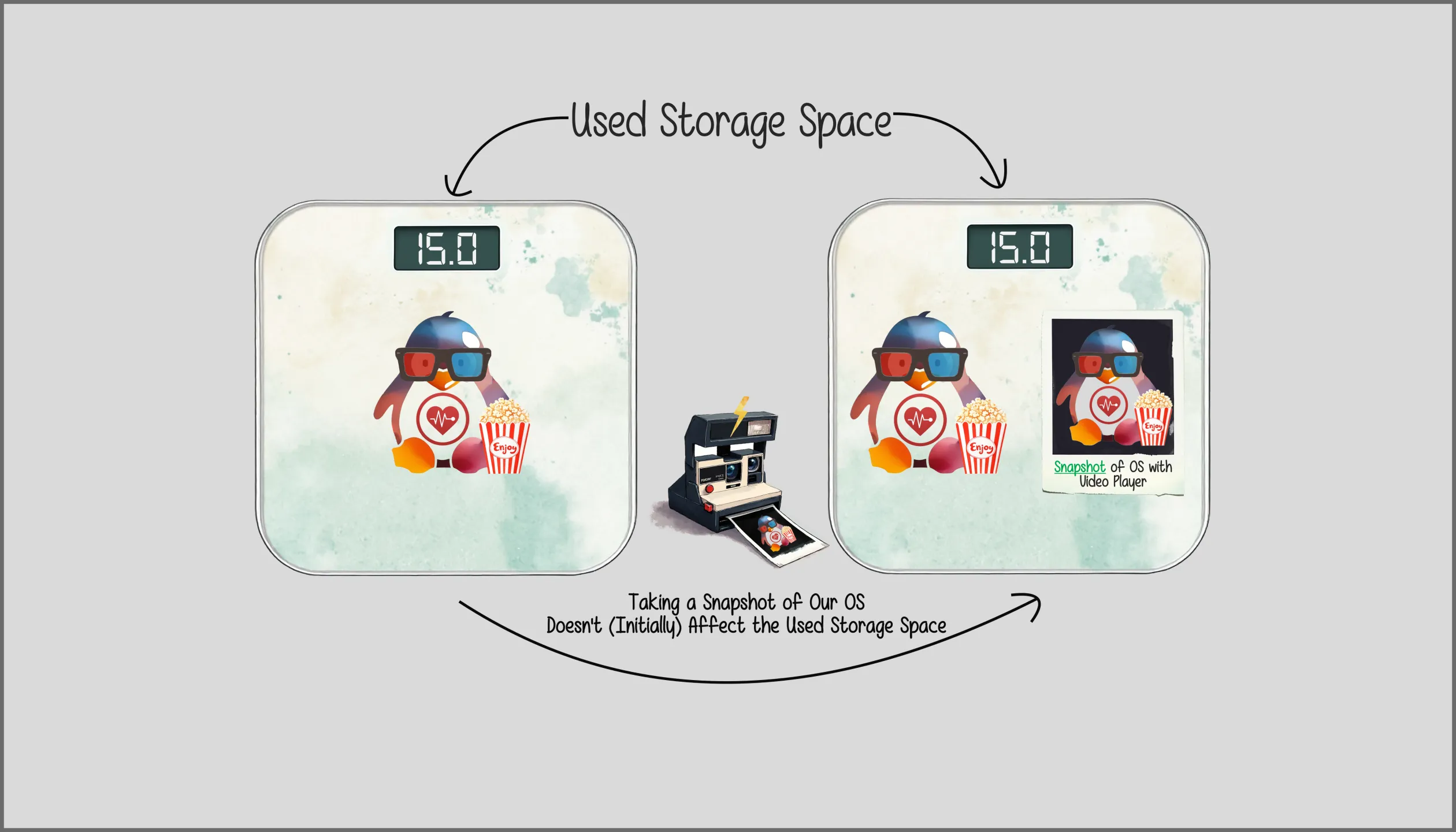
At first glance, a full copy and a snapshot may seem to do the same thing: both preserve the operating system as it existed at that moment. The difference lies underneath. A full copy immediately writes another complete, independent set of all the data. A snapshot creates another view of that data while initially sharing everything unchanged with the original. Put simply: a full copy duplicates the data; a snapshot initially duplicates the view of the data.
That is why snapshots initially require very little additional storage space and can be taken almost instantly: as either view changes, newly written data takes up additional space while unchanged data remains shared. So a snapshot is a copy of the arrangement without being another complete copy of the data — and it preserves an earlier state without immediately writing everything twice. In short: by duplicating the view, a snapshot captures the state of the data (e.g. our operating system) at a particular moment.
Personally, I think that’s pretty nifty stuff and so I have been taking snapshots for many years already — which brings us back to (conceptually) integrating these snapshots into the bootloader i.e. adding them as boot options.
Traveling through Time
Let’s start with the following observation from before:
A snapshot captures the state of the data (e.g. our operating system) at a particular moment.
Welcome to the domain of time! And since we’ve come this far, why not use time travel to make snapshot integration into the bootloader a little more visible? In other words, here’s one way to connect our snapshots back to the bootloader:
Great Scott!
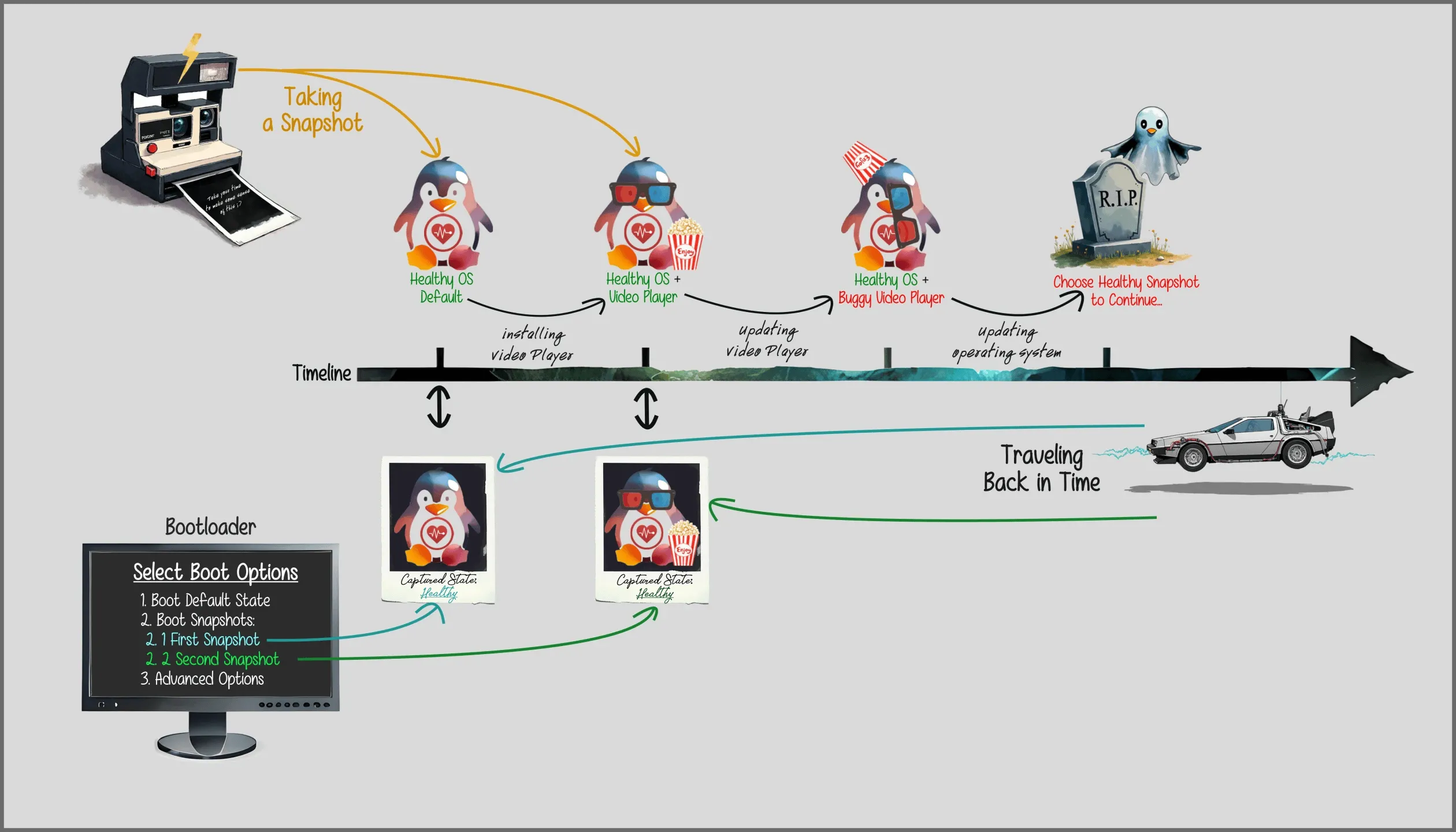
Starting in the top left corner, we have our Polaroid (opens in a new tab) camera taking two snapshots:
- a snapshot of our operating system in its unmodified, newly installed and healthy state
- a snapshot after installing a video player, expanding our system’s capabilities without negatively affecting its healthy state
These snapshots, once integrated into the bootloader depicted in the bottom left corner, become additional boot entries we can choose in case our system’s state ends up being negatively affected by future changes.
Moving forward on our timeline, we have a video player update with unintended consequences. Since we have more important things to take care of than watching a movie or a TV show, we ignore it for the time being. Maybe a future update will fix it. Given enough time, it usually does. But before that can happen, there’s a system upgrade and now we’re simply shit out of luck.
Of course, such unfortunate events have a tendency to occur at the worst possible moment. This time, however, we’re ready: the reboot happens with our DeLorean (opens in a new tab), allowing us to boot into an earlier state that we know was healthy. For instance, we could take a system snapshot after installing a working video player on Saturday at 21:00 (9 p.m.). The next day at 19:00 (7 p.m.), we update the video player as illustrated. Since that update didn’t go according to plan, we now find ourselves with a broken player. No worries! We can simply take our DeLorean time machine and travel back to Saturday, 21:00 (9 p.m.), when our video player was still intact.
Keeping healthy states of our operating system around in case something goes wrong isn’t just useful to deal with pre-update fear. It also opens up an opportunity to make strategic decisions about our lightweight boot entries. Let’s start with a very simple question: do we want to keep the impaired default boot entry and choose a snapshot to boot into, or do we want to replace the default entry with the snapshot so that it becomes the new default boot entry? Here’s how we can picture that:
Snapshot Restore Point
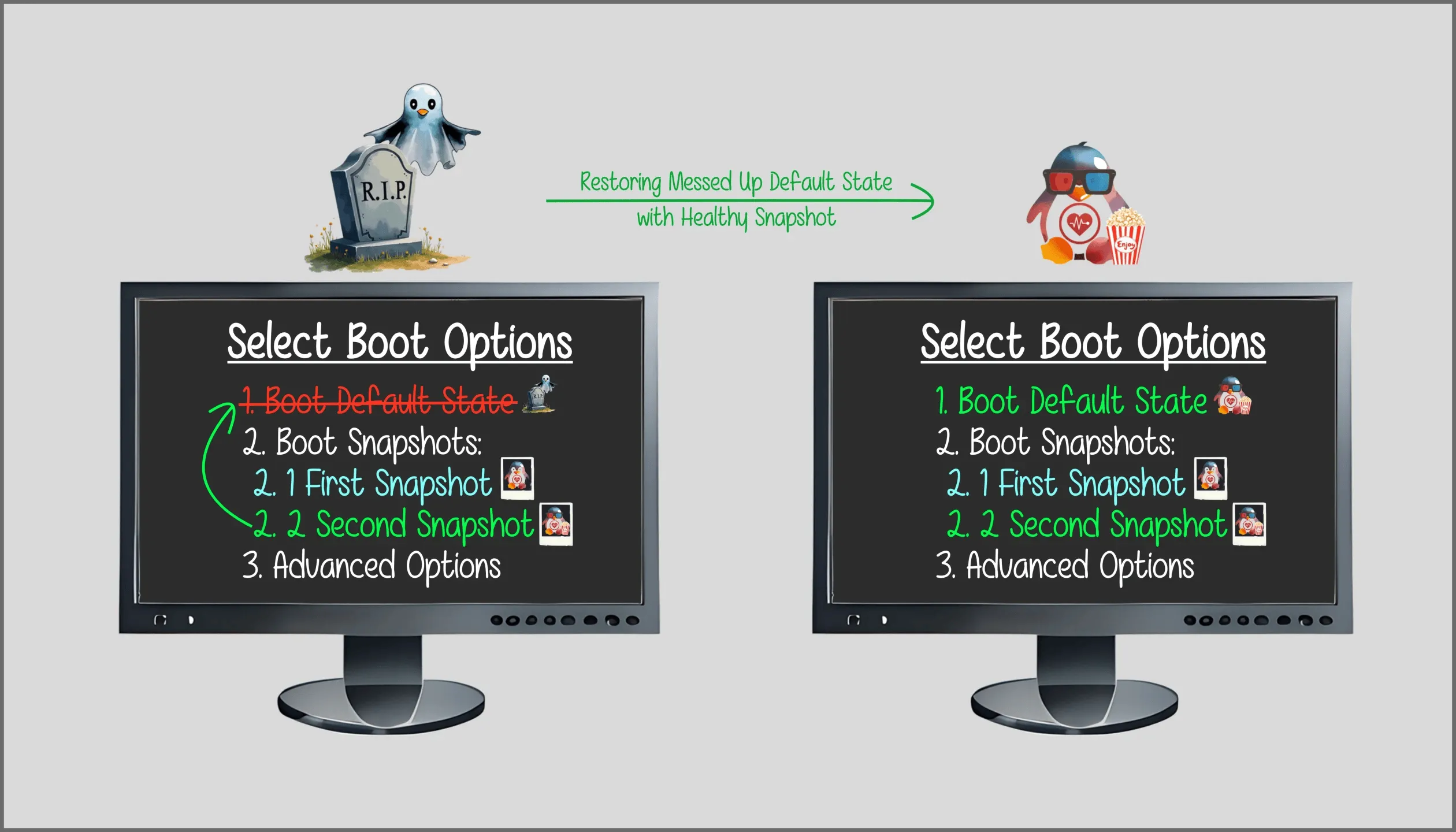
At this stage, an obvious yet very important aspect to consider is the following: when you manage your own system, you get to do whatever you want. There are no company policies, no IT people telling you what you can and cannot do. The upside: the way to deal with your system is your own responsibility. The downside: the way to deal with your system is your own responsibility.
With that in mind, how we approach the situation depicted in the above illustration entirely depends on us and how we want to manage our snapshots. To give you a bit of an idea for an approach that makes strategic sense, here’s something to consider: by taking a read-only (opens in a new tab) (ro) snapshot we can boot into the operating system and use it, but we cannot permanently modify anything such as installing new programs or updating existing ones. Such a snapshot is probably best used as a restore point for a messed-up default boot entry. By contrast, taking a writable (opens in a new tab) (rw) snapshot allows us to boot into the operating system and use it — as well as to make changes such as installing new programs, updating existing ones etc. without affecting the default boot entry.
The precise route back depends on the tools we end up using, but the strategy remains the same: protect a known-good state from accidental modification. Personally, I would always make sure that the default boot entry is usable. But that’s just a preference considering that a healthy, writable snapshot is essentially the same thing. This is something that I’m going to expand on in the third part of Change and Stability.
Branching Out
Keeping multiple snapshots around opens up another strategic possibility: splitting our operating system’s healthy state into multiple writable snapshots dedicated to different purposes such as work, leisure, research and so on. This allows us to keep each snapshot in its own confined space without affecting the other snapshots. It has to be said, however, that while these branches separate changes and working environments, they are not security boundaries like virtual machines or containers:
A Branch per Activity
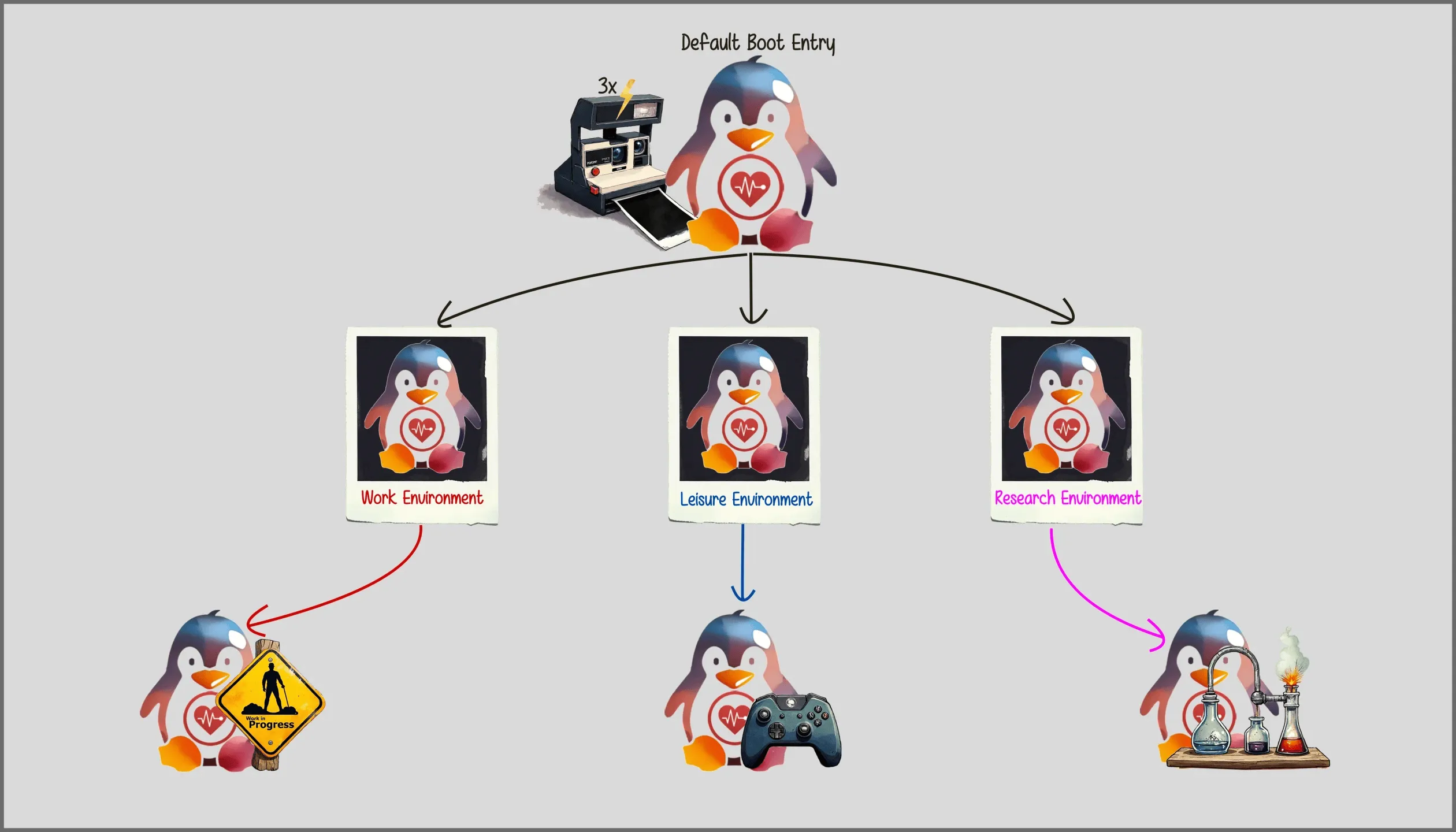
As you might remember, taking a snapshot initially adds little more than the information needed to establish that additional view. Its unchanged data remains shared with the original, while additional storage is used as the different states diverge. So why limit ourselves to only one snapshot? By taking multiple (writable) ones at the same state, we can now branch out into different environments without having to install the OS from scratch multiple times. This approach allows us, for instance, to install and remove software, to experiment with the system and, once we’re done, to quickly and cleanly remove the snapshot without leaving a mess behind.
Of course, the approach to compartmentalize our system for multiple purposes can be achieved in different ways:
- Dual/Multi Booting (opens in a new tab): separately installing multiple operating systems (e.g. dual-boot Windows and Linux). Can be useful when we need one OS to make up for the shortcomings of a different one.
- Virtualization (opens in a new tab): one host OS running software such as VirtualBox (opens in a new tab), Virtual Machine Manager (opens in a new tab). Can be used to install and run different operating systems as guests.
- Containerization (opens in a new tab):
- OS containers such as LXC (opens in a new tab) and managers such as Incus (opens in a new tab)
- Application containers such as Docker (opens in a new tab) or Podman (opens in a new tab)
Each one of these solutions comes with its own advantages and trade-offs and might be more or less useful depending on our project. For the conceptual part of Change and Stability, we won’t bother with any of them. However, it doesn’t hurt to familiarize yourself at least with virtualization in case you don’t have any spare computers lying around to install and play with a test system.
As for using snapshots to compartmentalize the OS, that approach probably comes closest to dual/multi-booting. The difference: instead of running several operating systems each taking its own full storage space, we have one and the same operating system with distinct branches using up the storage space of one entire OS plus the differences between these branches.
Finally, here is how we can visualize our bootloader by taking into account everything from the entire Capturing Stability section:
Strategic Overview
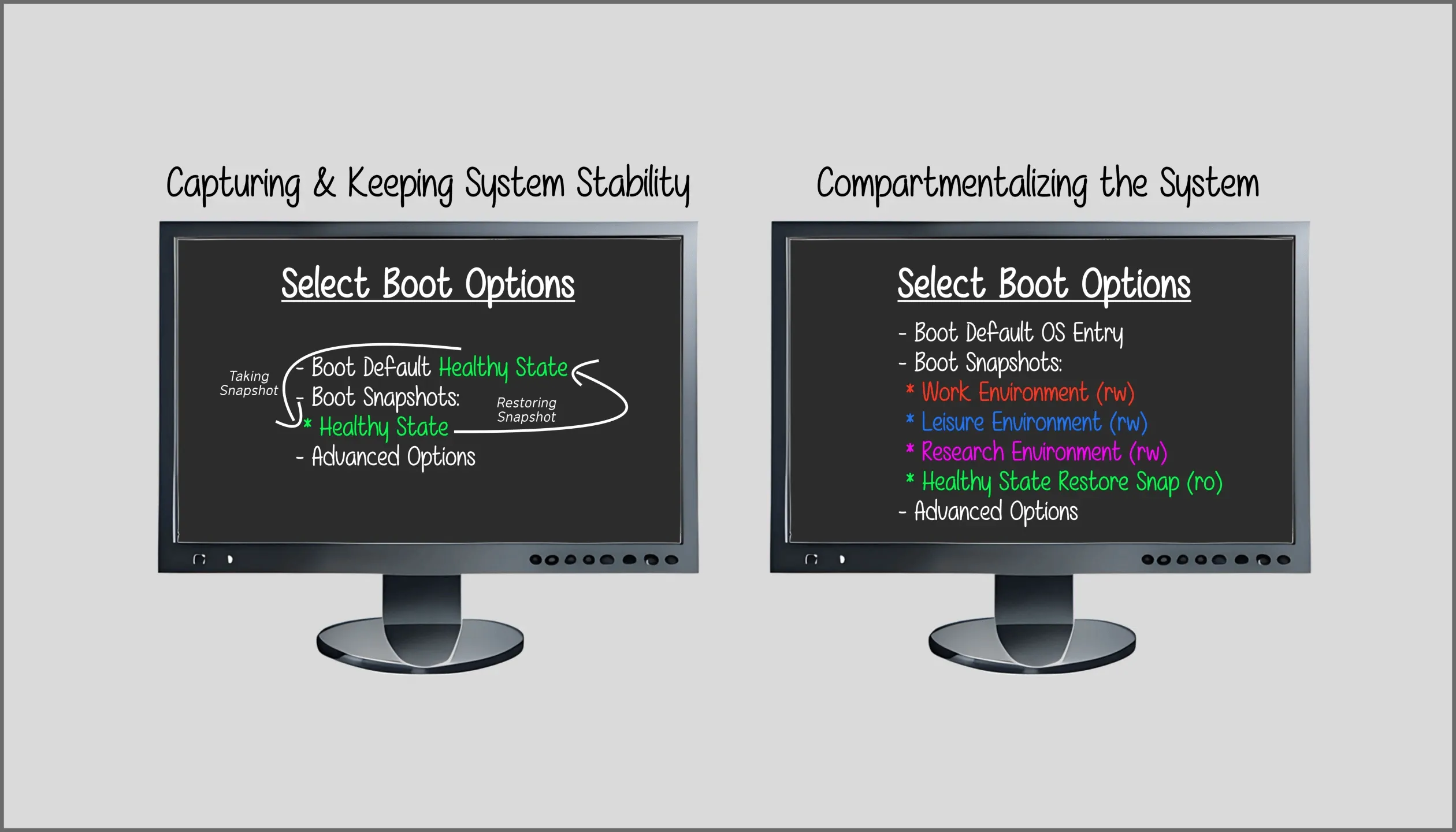
On the left, we have a setup solely focused on making sure that we always have a healthy restore point. This is essentially the main objective of Change and Stability.
By contrast, on the right we have our different boot environments. What I’d like you to pay attention to is the rw (writable) and ro (read-only) next to each snapshot entry. As mentioned earlier, these refer to whether a particular snapshot’s system state can be modified (rw) or not (ro). In the example, all the branches can be modified because we want to be able to set them up for their specific use cases. However, the last entry is kept ro i.e. we won’t be able to make any changes to that environment. Instead, what we could do is to take an rw snapshot of the ro snapshot to be used as the new default boot entry in case we run into problems after making a change. Basically, it might be a good idea to keep a healthy snapshot intended to be used as a restore point ro so that we don’t accidentally mess it up.
With all that in mind, at this point we should have a bit of an idea for some of the things we can do with snapshots. Of course, strategic planning will depend on our individual needs and while branching out the system into different boot environments might not be for everyone, my guess is that a reliable way back to a working system might be something universally liked. Just remember: a snapshot is not an actual backup of your data — it is simply a point-in-time record of the state of your data. In other words: nuances matter. A lot!
The Intersection
At its core, this is a language piece dressed in a technical costume. In part one, I suggested approaching the whole endeavor like a playground. Part two put that suggestion to work. Now we can move further into the intersection of figurative and technical language without distancing ourselves too much from reality — or getting lost in language seemingly written by another life-form.
The thing is, finding the right balance is challenging because conceptual and practical knowledge demand different kinds of precision:
Practical instructions for building, setting up, and using a technology must be precise enough to act on safely.
A conceptual bridge can simplify technical detail and take creative liberties, but it must preserve the structure relevant to understanding and making decisions.
Part three will therefore replace the camera with an actual software tool. That tool is an example, not a prescription. Every available solution comes with its own language and documentation, often written directly for the professionals relying on it and only inadvertently for people like me. My choices will most definitely diverge from some of yours. What matters is whether a tool available to you can achieve the intended technical goal, not whether you imitate my setup — or someone else’s.
There is also a difference between setting up a system and using it. Here, we are mostly concerned with the setup — something many people rarely encounter because devices usually arrive with pre-installed software that we accept as is. Once we’re past that initial work, we’ll have to observe how the system fits our usage and make adjustments for our particular needs.
I like to think of this in terms of convenience and independence: convenience can mean no or very low initial effort accompanied by long-term dependence, whereas independence often requires medium to high initial effort in exchange for long-term convenience. It isn’t simply one or the other. We could understand the setup conceptually and still ask someone else to perform it. That conceptual foundation would at least help us observe what is happening, ask better questions, and recognize the actual value of the answers. In short: we’d be better equipped to spot the bullshit if need be.
Finally, whichever path you take, the destination is worth it. My own setup has been working flawlessly for many years. As a matter of fact, it became such a boring system that it freed up all my time to, you know, write a piece like this one. Technically speaking, I have nothing else to do anymore with my operating system. Captured stability, it turns out, is what enables us to embrace change — or to do something else entirely.
Change and Stability was conceptualized and written mainly between 2019 and 2022. In 2026, at the time of publication of this part, software development has changed considerably. That being said, regardless of how the code is written, for the visual metaphor at the beginning all that matters is the concept “written document”. ↩︎
Chalmers notes that Manuel Gustavo Isaac had already used Conceptually Engineering Conceptual Engineering as the title of an article. My own phrasing in part one was written without knowing either text. ↩︎
In 2026, we could also just ask an “agent” living on our machine to fix it for us. Well, that’s what I started doing anyway 😉 ↩︎
